Backup module · User guide
Back up the whole installation and get it back in an emergency
The Backup module saves your FreeScout installation completely into one file: the database, all uploaded files and the source of every installed module. From that single file the installation can be restored — even onto an empty server on which no FreeScout exists yet.
You find it in FreeScout under Manage → Backup. It needs no other module.

What a backup contains
An archive holds four things:
mysqldump — tickets, customers, settings, everything.storage/app: attachments, profile pictures, logos, vault icons.Modules/, so a restore onto a new server does not need every module procured one by one first.manifest.json records which FreeScout version and which module versions are inside.That the module source travels along is deliberate. Without it you would have to obtain every module on the new server first, in the right version, with the right licence key — at exactly the moment you can least afford it.
FreeScout itself is not in the archive. It is fetched during a restore, in the version the index names.
Scheduled backups
Under Manage → Backup → Settings you set when a backup runs: daily at a fixed time, or weekly on any weekdays, each with its own time.
Keep last N clears the oldest backups by itself. A backup you pin is exempt: it is not counted and never deleted automatically. That is the place for the state before a larger change.
Additionally off-site
Every finished backup can be pushed automatically to an FTP or FTPS server, with its own retention rule — so you can keep three backups locally and thirty on the remote server.
The point of it: a backup that only sits on the same server as the original helps against a mistake, but not against the machine failing. Test connection checks access and path without touching a single file.
If the upload fails, the local backup stays untouched and valid. The remote copy must not take the backup down with it.
Validate before you rely on it
The Validate action on a backup does more than look into the file. It unpacks the archive into scratch directories, checks the index, counts the module folders — and if the database user is allowed to, it actually imports the database dump, into its own test database that is dropped again immediately afterwards.
That is the difference between «the file looks intact» and «this backup can be restored». None of it touches your running installation.
Take that step once for the backup you would fall back on in an emergency. An unvalidated backup is a hope, not a backup.
Restoring while FreeScout still runs
This path applies as long as you can still sign in.
- Choose the archive in the overview, or upload one from an older installation.
- Type the exact file name to confirm, or the word
RESTOREfor an uploaded archive. - The module first takes a backup of the current state. That cannot be switched off, and it is the reason a restore that went wrong can itself be undone.
- Then database,
storage/appandModules/are replaced from the archive. The page shows the progress. - Sign in again and check under
Manage→Moduleswhether the versions are the ones you expect — the state from the archive wins over what was on disk.
The typed file name is deliberately inconvenient. A confirmation dialog gets clicked away; a file name does not get typed by accident.
Restoring onto bare metal
If FreeScout no longer starts, or you are moving to a new server, you do not need a running installation. The archive and the file kickstart.php, which you download on the Backup page, are enough.
Neither FreeScout nor the modules nor Composer have to be there beforehand.
In order
Prepare an empty web directory and a database. Copy kickstart.php and the archive next to each other into it — over SFTP or SCP, not through the browser: a backup is usually several hundred megabytes and hits the file-size limit in a browser.
Then open kickstart.php in a browser. The first step is a proof of access: the script writes a random token into a file next to itself and has you read it back. Whoever restores has access to the directory; a passer-by does not.
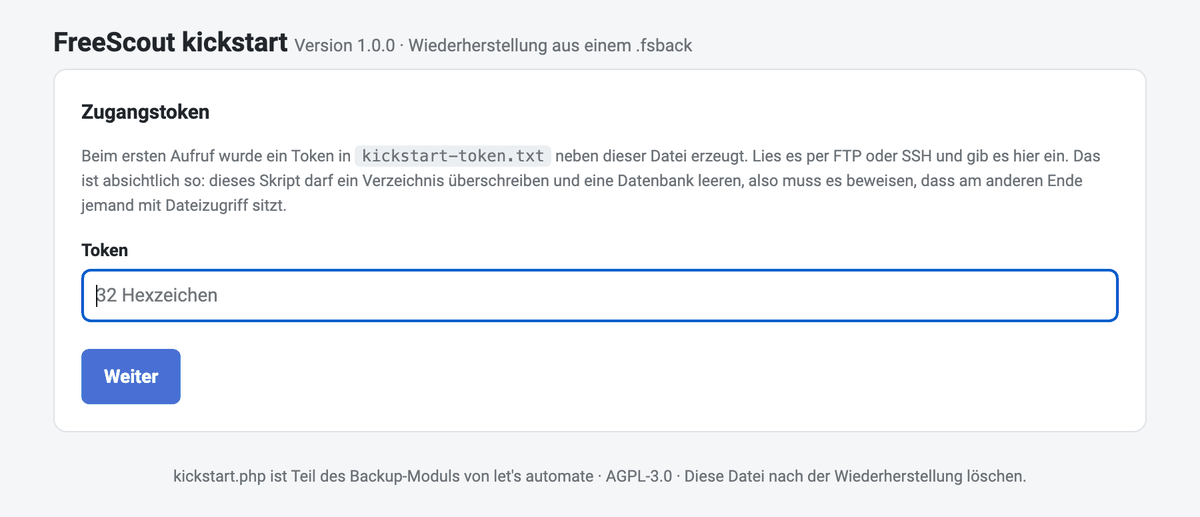
After that the wizard walks through six steps: checking the environment, choosing the archive, obtaining FreeScout itself, database access, key, and finally the restore.
At the archive step it names what is inside before anything is written: FreeScout version, when the backup was made, size, and every module it carries.

At the end the wizard can delete itself, along with the token and its state file. Take that offer: while it exists, an unpacked database dump lies in the web directory.
If something seems stuck
A step that takes long is not stuck. The wizard works in short sections and is called again — it remembers how far it got. It is built that way because many hosts limit the runtime of a single request.
If the token file cannot be written, the web server lacks permissions in the directory. That has to be fixed first; a wizard that could run without its proof of access would be worse.
Encrypted archives
If you set an archive password under Manage → Backup → Settings, every further backup is written as a .fsback.enc: the same archive, but fully encrypted with AES-256-GCM.
Because it then protects its own contents, it additionally carries the APP_KEY — the key with which FreeScout encrypts mailbox passwords and credentials in the database. For a restore you then only need the password.
| Without a password | With a password | |
|---|---|---|
Openable with plain tar | yes | no |
Contains the APP_KEY | no | yes |
| A restore needs | the APP_KEY, kept separately | the password |
| A lost secret means | re-entering credentials | no restore at all |
| Protects a stolen archive | no | yes |
The unencrypted form is not the lesser one. It opens with any tar, even without this module — and a lost password cannot make it unusable. Encryption trades that away for protecting an archive that has left the server.
And that is what this is about: a stolen FTP account, a lost hard drive, a wrongly shared folder. It does not protect against your own server, because scheduled backups run without you — so the application has to know the password.
The emergency sheet
Under Manage → Backup → Settings, Emergency sheet produces a print-ready page with the restore steps. It adapts to the form you use:
APP_KEY is printed — because nothing else records it, and paper in a safe beats nowhere.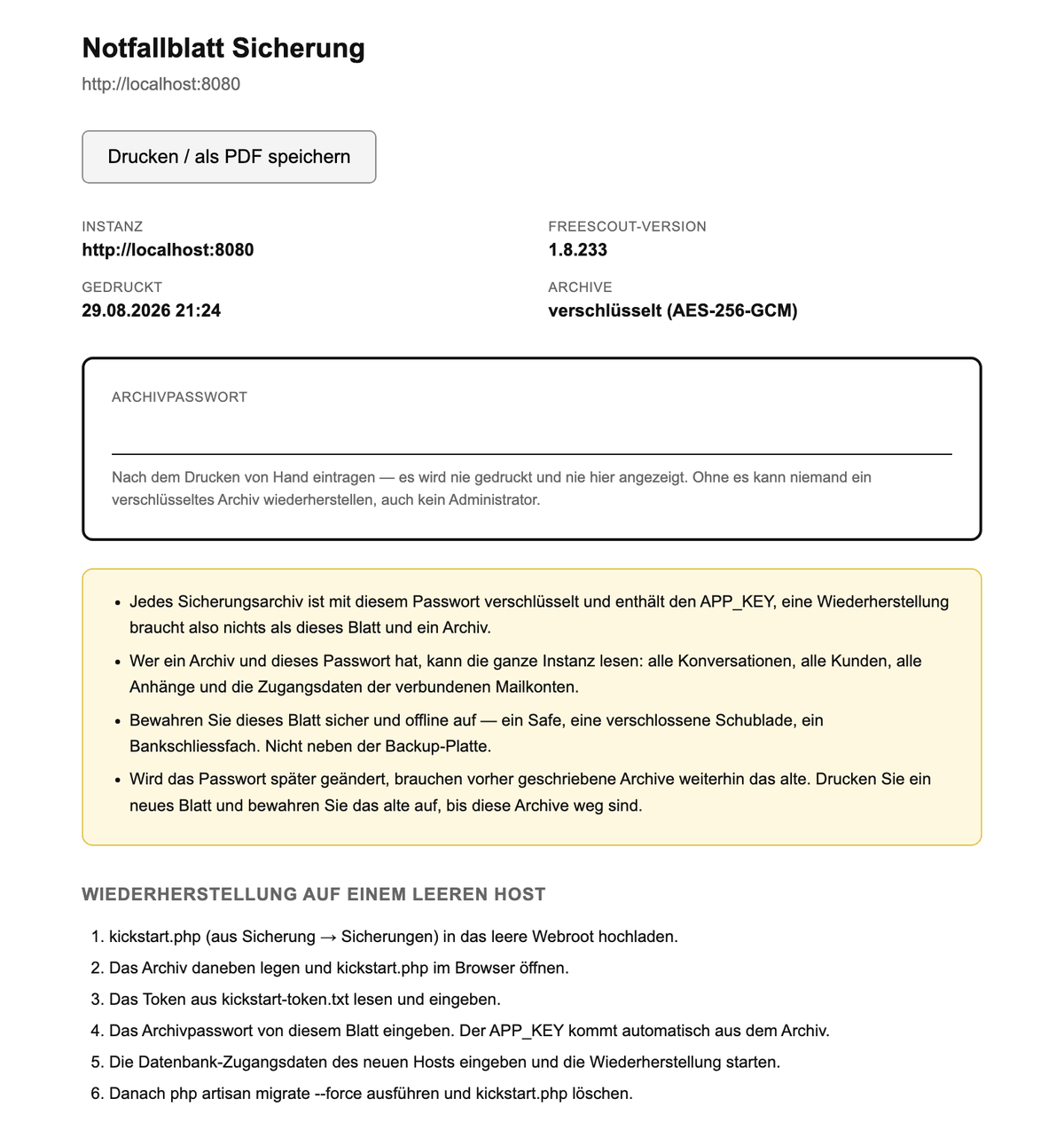
Keep it where you keep contracts — and not on the same server.
Worth knowing
A restore replaces everything
Database, storage/app and Modules/ are replaced completely by the contents of the archive. Not extended, not merged. Whatever came into being since the backup is gone afterwards — hence the backup of the current state as the first step, and hence the file name you have to type.
Changing the password re-encrypts nothing
Older archives still need the password they were written with, and the module deliberately keeps no list of previous ones. Print a new emergency sheet after a change and keep the old one until the archives encrypted with it have aged out.
What the server has to provide
tar, mysqldump and mysql have to exist on the server — in the usual FreeScout container they do. The FTP export uses cURL and not PHP's FTP extension, which is missing on many servers.
Not getting anywhere with this? Support